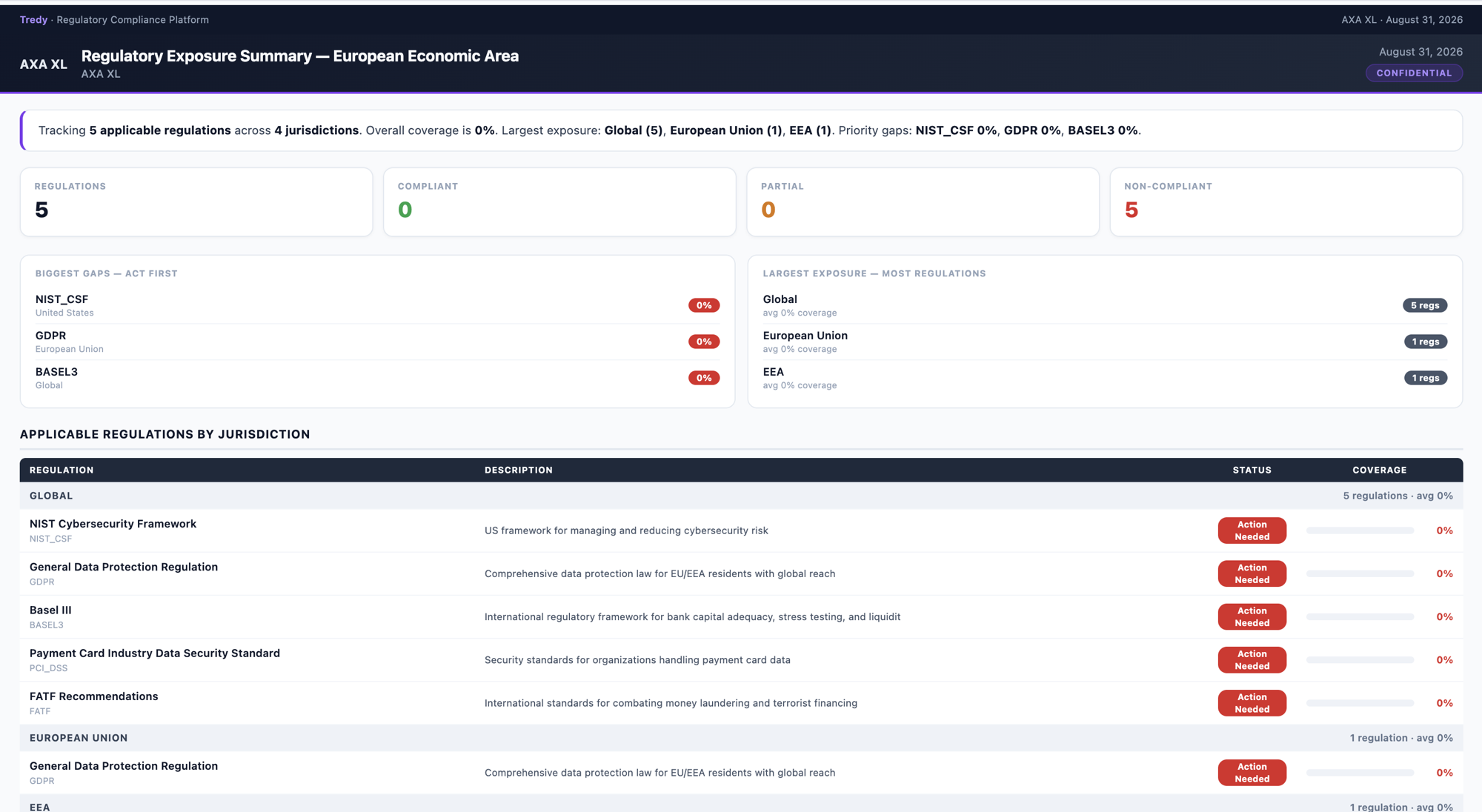

SAF Assessment & Evidence
The SAF (Security Assessment Framework) workflow: parse the control set into questions, answer each from evidence you upload, cite the source, flag the gaps, and export.
| FR | What it is |
|---|---|
| FR15 | SAF controls as structured input (one control = one question) |
| FR16 | Accept uploaded evidence (PDF, DOCX, XLSX…) |
| FR18 | Search evidence per control, keep relevant passages |
| FR19 | Map each control to evidence (document / section / page) |
| FR20 | Flag controls with no evidence as gaps |
| FR21 | Assign high / medium / low confidence to each mapping |
| FR22 | Export the evidence mapping |
FR15 · SAF controls as structured input
Upload the SAF control list as a questionnaire.
Wait for each control to become one row / question.
Use those rows as the checklist for the assessment.
FR16 · Accept uploaded evidence
Open the Document Hub.
Upload files such as PDF, Word (DOCX), or Excel (XLSX).
Wait until processing finishes.
FR18 · Search evidence per control
Open the SAF questionnaire in the workspace.
Ask Tredy to answer using the Document Hub.
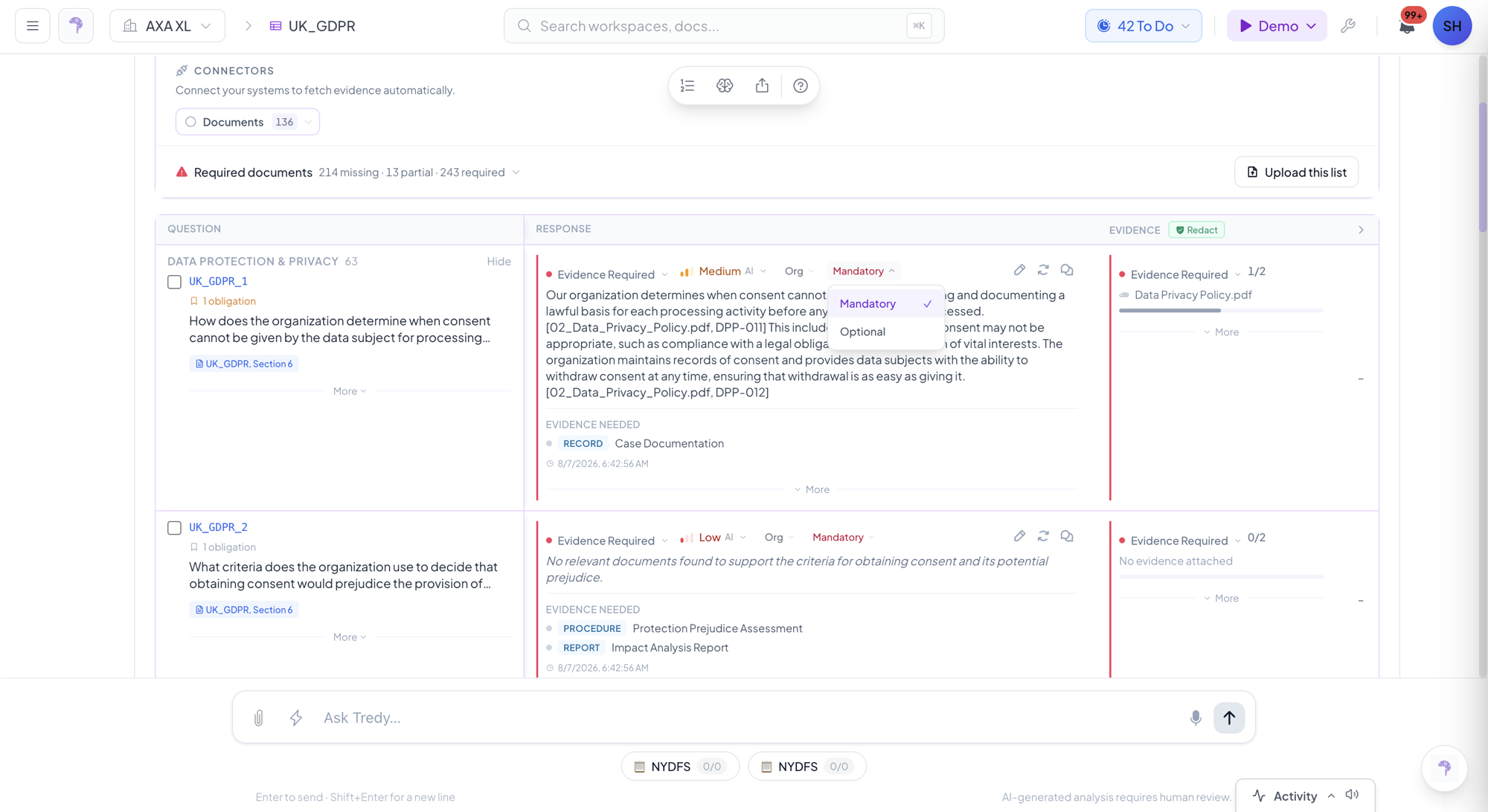
![The Response Canvas with each control answered and cited evidence [1][2] alongside.](/usecases/ss-canvas-confidence.png)
Review the passages it found for each control.
FR19 · Map each control to its evidence
Answer each control.
Check the citation: document name, section, and page.
Keep this for audit traceability.
Include citations when you export.
FR20 · Flag controls with no evidence as gaps
Filter Unanswered / gaps.
Review the flagged gaps.
Add more documents or assign someone to fix the gaps.
Re-run analysis.
FR21 · Confidence level on each mapping
After analysis, look at the confidence badge on each answer.
Review Low and Medium items first.
Use the approval queue before final submit.
FR22 · Export the evidence mapping
Open Export & Compliance (or Export).
Choose Excel, Word, PDF, or CSV.
Turn on Include evidence if needed.
Download the file and share it.